 TuitionPing
 setup guide · Monthly tuition reminders
How to set up automatic daycare tuition reminders
Put your monthly tuition texts on a schedule while keeping the payment method you already use. TuitionPing's setup wizard follows four steps: program details → families → preview → test text.
Before you start
Have your program name, timezone, sending hours, each family's agreed monthly amount and due day, and a parent's US mobile number ready. Collect permission to send tuition reminder texts before adding a family. You can use English or Spanish messages for each family.
Create your account, choose a plan, complete the trial checkout and verify your email before adding families. Your account's setup wizard saves progress so you can return later. The 30-day trial requires a card; your selected subscription begins afterward unless you cancel.
Check the schedule fit first: the subscription uses monthly due days. Weekly and term-based bills can be recorded in the free tracker, but they do not become weekly or term-based automated schedules.
1. Save your program details
In Program details, enter the Program / location name families should recognize. An address and existing payment link are optional. A location without a classroom gets a default Families group.
Choose your Program timezone, Texts may start at and Texts stop at. Those sending settings apply to all locations in your account. Click Save and add families.
If you collect cash or checks, you can leave the payment-link field blank and add your usual instructions to the message templates in Settings. If you already have a payment page, use its complete HTTPS URL. See the cash, check and bank-transfer reminder workflow for examples.
2. Add families or import your roster
Choose the group, enter the child's first name, parent's US mobile number, Monthly tuition ($) and Due day of month. You can also set a first bill date and the family's message language. Confirm the family agreed to receive tuition texts, then click Save family.
Saving or importing a family sends a welcome text identifying your daycare. Adding real families is a live account action. Use the fictional demo to explore without contacting anyone, and keep each family's actual agreed due date.
Use the separate family CSV format
Download the template below, replace its example row with your roster, and export as UTF-8 CSV. The example phone is deliberately a placeholder: replace it with a consented parent's US mobile number before importing. Remove every example row you are not replacing.
Download family import template (.csv)
| Column | What to enter |
|---|---|
name | Required: child's name as used in your reminders. |
phone | Required: parent's US mobile number, for example in +1 format. Confirm permission first. |
tuition | Required: monthly dollar amount, such as 800.00, without a dollar sign or thousands separator. |
due_day | Required: agreed day of the month, from 1 through 31. |
phone2 | Optional second parent number with permission to receive texts. |
language | Optional: en or es. |
next_due_date | Optional first bill date in YYYY-MM-DD format. |
Open Import families from CSV, choose the destination group, attach the file, confirm every family agreed to texts, and select Upload and import. Files can be up to 1 MB; your plan's family limit still applies. Review the import results before uploading anything again.
The free payment tracker uses one row per bill. This CSV uses one row per child/family record; the tracker workbook is not an import file.
3. Review the message previews
Continue to Preview. The wizard shows fictional names, $1,850 tuition and an October 1 due date with your program name, payment link and template wording. Actual reminders use each family's saved details.
Review the before-due, due-date, 3-days-late and 7-days-late messages in the languages you use. Check the program name, instructions, amount placeholder, opt-out wording and sending hours. Use Settings to edit the templates or sending settings, then review the current previews again.
Select I reviewed these examples, program details and sending hours and continue. A parent can reply PAID after sending payment; your payment review comes afterward.
4. Send a test to your own phone
Enter your own US mobile number in Send yourself a test text, confirm it is your number, and click Send test text. This on-demand test sends immediately to that number. You can request up to three tests per day.
Read the message on your phone and check the program name, wording and link. A test marked accepted means it was accepted for sending; check your phone for actual delivery. The test does not mark a family's tuition paid.
Open your dashboard when finished. Reminders follow the families' real due dates and your sending hours. If you change program details, templates or family settings, return to the previews and test again.
After setup: check payment before confirming receipt
When a parent replies PAID, the dashboard shows a report for review. Match the family, amount and billing period against your actual payment records. Then use Confirm payment received for the payment you verified.
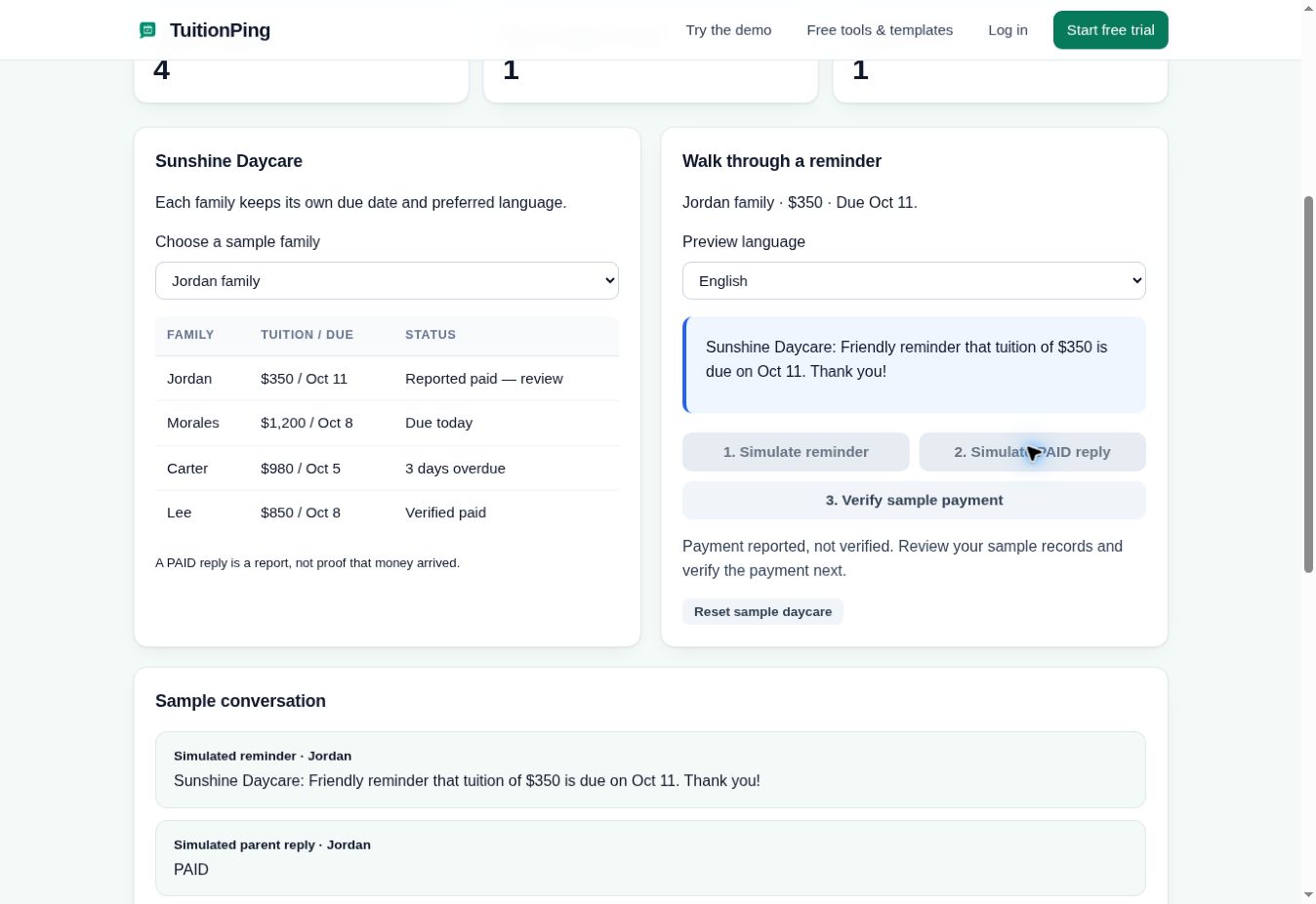
See the provider-confirmed view
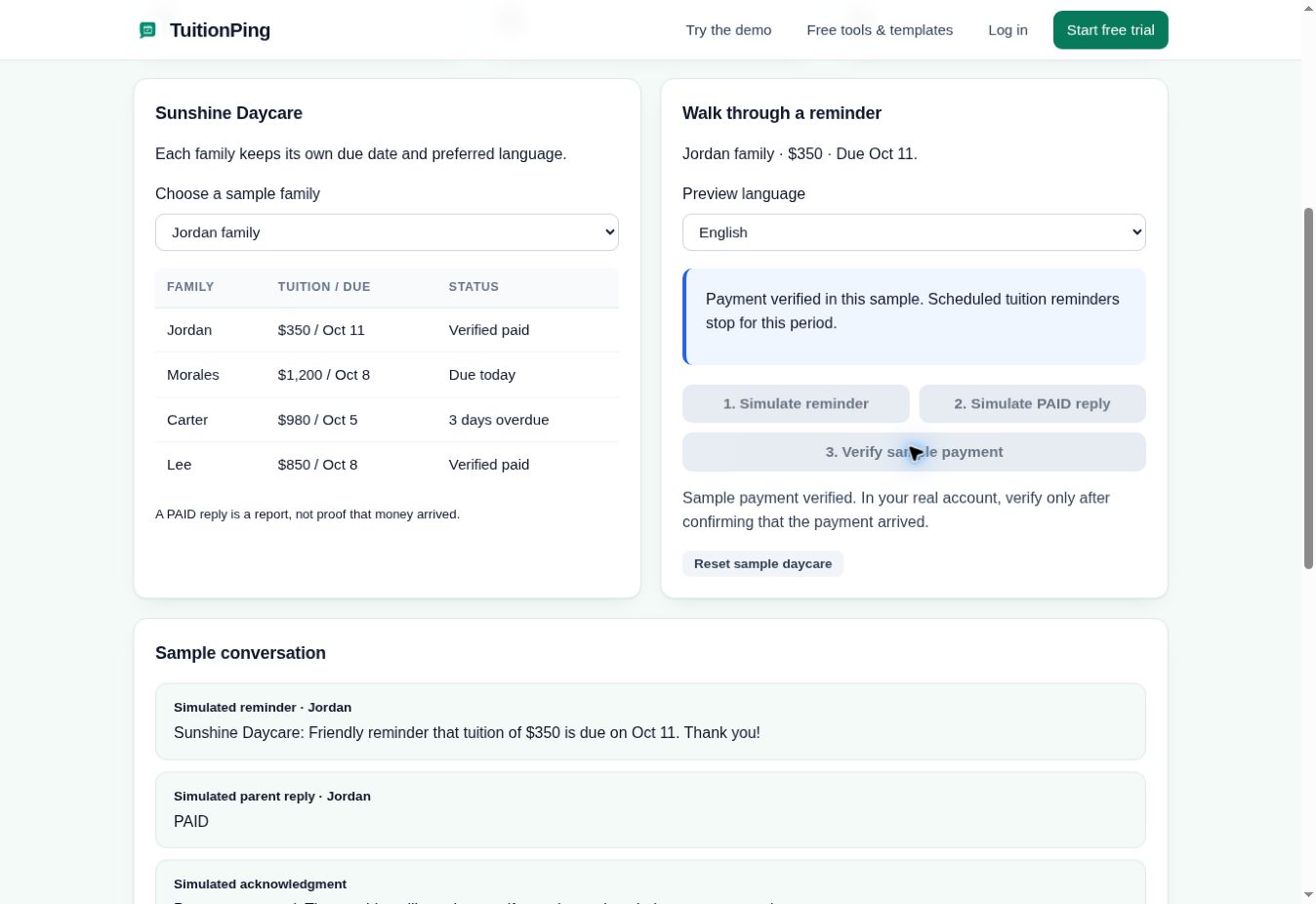
Watch the 48-second walkthrough with captions or try the complete sequence yourself.
Common setup questions
Do parents need an app?
No. They receive ordinary text messages on their phones. You manage reminders and payment review from your account.
Will CSV import message families?
Yes. Each successfully imported family receives a welcome text identifying your program. Review the roster, numbers and consent before uploading. Opening this guide or downloading the template sends no texts.
What if my test does not arrive?
Recheck the mobile number and the on-screen result. If the send was accepted but you still cannot find the text, use setup help with a brief description of the step and error. Never include passwords, card details or a complete family roster in a support request.
Can I keep collecting payments my usual way?
Yes. Follow the cash, check and bank-transfer guide to connect reminders to the records you already keep.
Set up your program
Start with your program details, add families, review the reminders and send yourself a test text. Micro is $9/month for up to 10 families; compare all plans for larger rosters and multiple locations.
The real trial requires a card at secure checkout. Your selected subscription starts after 30 days unless you cancel. The interactive demo needs no account or card and sends no texts.